Labels

Monday, January 5, 2015

Embedded content in BlackBoard Learn

Why embed?


What is an embed code and where do I put it in BB?

The "embed code" is a block of HTML which allows a web tool to be embedded within your BlackBoard course.  It's similar to a hyperlink but it allows you to interact with the linked tool whilst staying inside the BB course.

Embed codes look similar to this:

However, you don't need to worry about writing the code.  You can find them by looking out for icons such as these...


...and then copy-paste them into the HTML editor tab of an item in BB.


BB's own embedding tools:


1. Insert image inside textbox, not as an attachment. 
2. Add an audio track with a QuickTime player suitable for the iPad.
3. Add a YouTube video using the Mashups tool.
4. In Google Chrome, use the Record from Webcam tool to make an embedded video.
 

How do you embed a video from YouTube?

Locate a video that you want to use and seek out its embed code. Paste the embed code into the HTML tool. This video explains how: http://www.youtube.com/watch?v=ZnuwB35GYMY


Now you know what embed codes look like, you can start to seek them out:

1. Make a basic hyperlink more engaging by turning it into an Embedly card. 
This website turns any web address into an embed code: http://embed.ly/code
This is an example of an Embedly card: Socrative
 
2. Add clocks and timers.


The problem of Flash/Shockwave content

There are many lovely embeddable tools that, unfortunately, don't work on iPads  because they use Shockwave or Flash.  These tools will embed and work on teacher computers in the classroom but will not show up on the students' iPads:
http://www.online-stopwatch.com/download-stopwatch/ 
http://popplet.com/app/#/310
http://voicethread.com/

Five good tools that you can embed

Here are some lovely tools that can be embedded in BB and be accessed through the iPad:
1. Quizlet http://quizlet.com/16664310/theme-6-ls-7-1-flash-cards/ 
 

4. Educreations https://www.educreations.com/#_=_
(On the iPad, the embedded video will take the student to their educreation app and open the video in their app)


Please let us know in the comments if you find any more good embed codes, especially if they are iPad compatible.  Thanks!


Monday, December 17, 2012

Tips from the teachers

From our experiences of teaching with iPads, here are some tips for iPad classroom management.

  1. teach from the back
  2. move around
  3. use photos 
  4. use video streaming
  5. set time limits
  6. close all apps
  7. ipad flat on the desk
  8. show products on screen


Teacher Kit (formerly Teacher Pal)

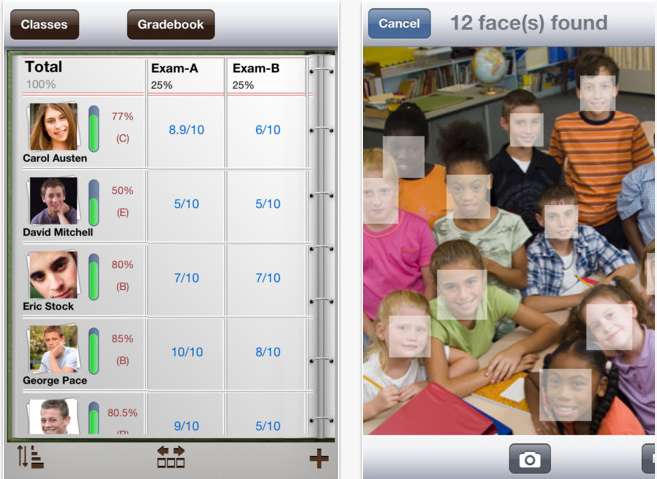
Teacher Kit is a personal organizer to help  with attendance, grades, and student behavior. It's free.

As a teacher you can set up your classroom, seating assignments, grades, and save student information such as student names and emails.  From the app you can email students, take attendance and monitor student behavior.
For make students you can take a picture of the whole class and the app recognizes faces and asks you to identify them to help you build a roster with names and pictures for attendance purposes.


Question:
Have you tried Teacher Kit?  With our 'portal' system for storing attendance and grades, do we need something like this as well?

Teacher's Assistant Pro

Teacher's assistant is designed for iPhones and is designed as a way to give classroom feedback to parents and guardians.  The lite free version doesn't appear to have an option for adding students (!) but the pro version isn't too expensive.


Using a .csv file, you enter or import  a student's name, class period and email addresses, then add comments about student behaviour at any time. Teacher's Assistant Pro collects the data you enter to be used as you wish later. The app stores the name of the infraction/accolade, the date and time, where it occurred, which class period, a detailed description, what teacher action occurred. There's an "Optional" space to track any other information about the student's actions.


Useful videos

An overview of the app
How to import student data into the app

Question:

Have you tried this app out?  What do you think of it?

Sunday, December 16, 2012

LAN School

Lanschool is classroom management software that allows teachers to control student screens.  It gets pretty good reviews. However, it is pricey so would have to be a system-wide purchasing decision.

You can download a free trial of Lanschool to your desktop and a teacher and students app is then free to support that downloaded software.

The software described by the LAN school developers:

I haven't trialed it yet but will do next semester. Has anyone seen it in action?

Class Dojo

Class Dojo is a free app with icons of amusing monsters for each student.  


First you set up your class on your laptop by going to http://teach.classdojo.com/login and registering. Add a class and edit the class to add names and the behaviour you want to address (e.g. +1 for being on task, -1 for chatting in Arabic).

Then you run the class either as a website on the teacher’s computer or using the iPad app and add/subtract points as the lesson goes along.  


At the end, you can run reports which will be very helpful when it comes to writing reports about study skills.

Question:
Have you found any similar free apps?

Guided Access

Guided Access came along with the iOS6 upgrade and proved to be one good reason for an iPad contract that insists on students upgrading to the latest iOS updates.

With Guided Access you can limit an iOS device to one app by disabling the Home button, as well as restrict touch input on certain areas of the screen.  We have been using it for vocabulary tests and it has been a real advantage when it comes to room bookings for online tests.

Question:

If you've used it, how do you feel about it?